How to Pair and Group Linkind SL5C Smart Solar Spotlights in the Aidot App v2.5.0
To pair Linkind SL5C spotlights in Aidot App v2.5.0, charge panels in direct sun for 8 hours, enable Bluetooth and Location permissions, tap '+' in Aidot, and select SL5C under Auto Scan. To group, tap '+', select 'Create Group', choose 'Smart Solar Spotlight', and select paired units to sync RGBTW effects.
Pre-Pairing & Hardware Setup Checklist
- Unbox Linkind SL5C spotlights and place solar panels in direct, unshaded sunlight for at least 8 hours prior to initial app pairing.
- Verify solar panel tilt angle is adjusted to ±5° from local latitude (Northern Hemisphere baseline) for optimal energy absorption.
- Ensure installation location keeps panels clear from shadowed areas and strong artificial ambient light sources (e.g., streetlights).
- Download or update the Aidot App to version 2.5.0 on your iOS or Android smartphone.
- Turn on mobile phone Bluetooth and grant location/nearby devices permissions in your smartphone system settings.
- Position mobile device within 10-15 feet of the SL5C spotlight during initial discovery.
Step-by-Step Guide to Pairing and Grouping Linkind SL5C Spotlights

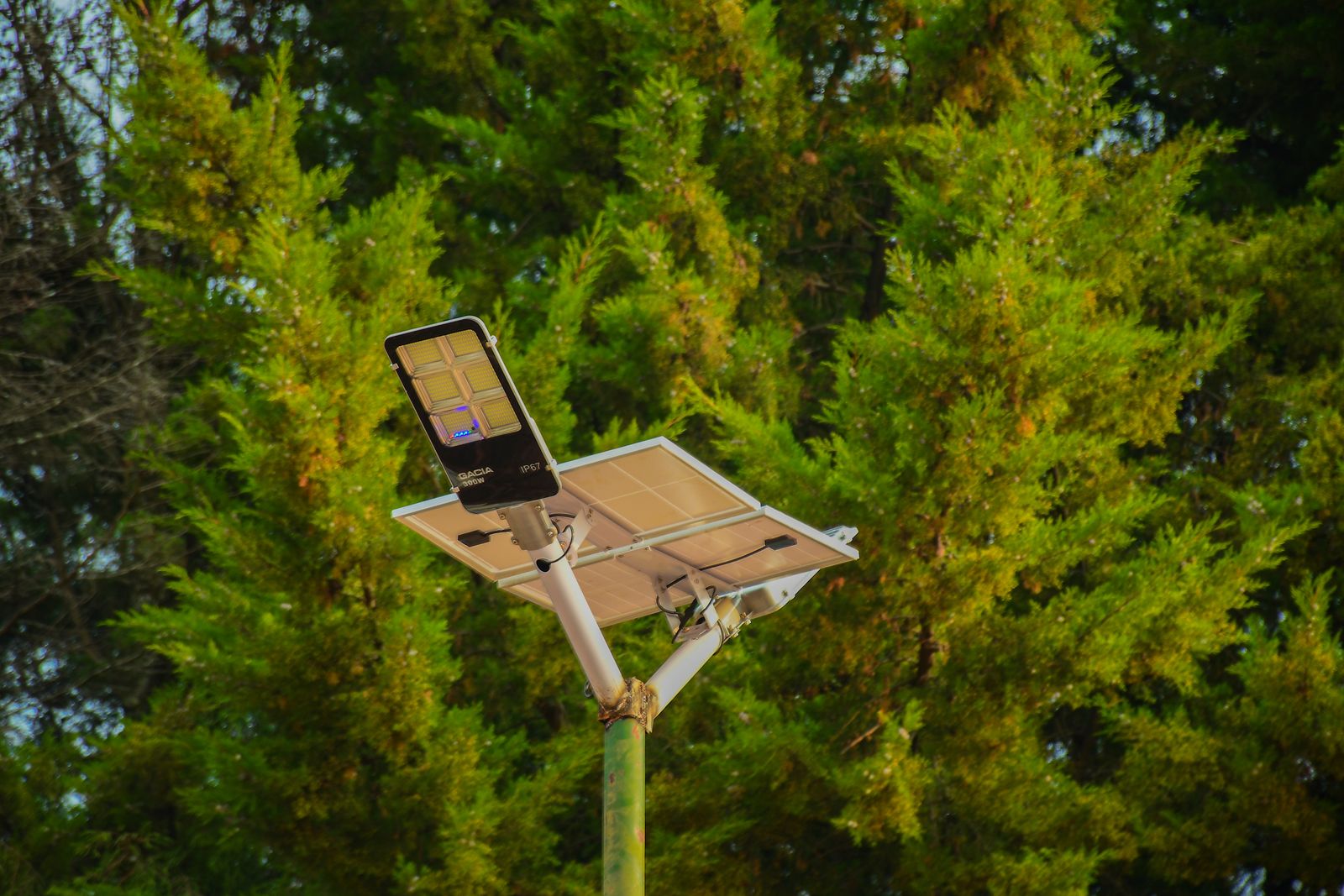
Photo by suzukii xingfu on Pexels
Follow these two sequential procedures to onboard your Linkind SL5C units into Aidot App v2.5.0 and establish synchronized lighting groups across your outdoor space.
Procedure 1: Pairing Individual SL5C Spotlights
Procedure 2: Creating Synchronized Lighting Groups
Expert Tip: Optimizing Bluetooth Mesh & Solar Positioning
To achieve seamless group responsiveness in Aidot v2.5.0 without signal drops, position your primary SL5C spotlight within 25 feet of your smartphone or smart hub, and maintain a maximum distance of 25–30 feet between adjacent spotlights to form a continuous Bluetooth mesh network.
When setting up hardware outdoors, install fixtures 5–7 feet away from target trees, walls, or architectural features for best illumination depth. Use a staggered pathway lighting approach along opposite sides of walkways to eliminate harsh shadows while ensuring uniform coverage.
Aidot v2.5.0 Pairing & Grouping Troubleshooting Matrix
| Symptom | Root Cause | Actionable Resolution |
| --- | --- | --- |
| Aidot v2.5.0 shows 'No Devices Found' during scan | Insufficient battery charge or Bluetooth permissions turned off | Expose solar panel to 8 hours of direct sun. Check smartphone settings to ensure Location and Nearby Device permissions are granted for Aidot. |
| Spotlight powers off immediately after turned on | Light sensor detecting strong ambient illumination | Cover the solar panel completely with a towel or hand during daytime pairing to prevent the auto-shutoff daylight sensor from triggering. |
| One spotlight in a group lags or misses color changes | Interference or spacing exceeding Bluetooth mesh limit (>30 ft) | Reposition intermediate spotlights so no two lights are further than 20–25 feet apart, maintaining an uninterrupted Bluetooth mesh relay. |
| Group controls fail to save in Aidot App v2.5.0 | Outdated app version or cached system data overflow | Force-close Aidot, update to v2.5.0 via App Store or Google Play Store, clear app cache, and re-create the light group. |
If your Linkind SL5C lights fail to pair or sync correctly inside Aidot v2.5.0, consult this matrix to resolve common hardware and software conflicts.
Key Takeaways for Aidot App v2.5.0 Spotlight Setup
- Solar Pre-Charge: Always charge SL5C panels in direct sun for 8 hours prior to initial pairing.
- Proper Alignment: Set solar panel tilt angle to ±5° from local latitude to prevent battery depletion.
- App Versioning: Ensure Aidot App is strictly updated to version 2.5.0 or newer to access full multi-device grouping menus.
- Mesh Continuity: Keep paired units within 25-30 feet of each other for lag-free RGBTW color and music synchronization.
Grouping Strategies: Zone Control vs. Whole-Yard Sync
Choose between single-zone grouping for entire pathways or multi-zone grouping to separate accent garden lighting from perimeter security spotlights.
Best choice for
- Staggered Single-Group Configuration — Allows uniform dimming and synchronized RGBTW color temperature along the entire walking path.
- Multi-Zone Grouping (e.g., Patio Zone, Garden Bed Zone) — Enables independent music sync and dynamic scene shifts across distinct outdoor living spaces.
- Placing solar panels in heavy shade during initial 8-hour charge
- Grouping spotlights located more than 30 feet apart without intermediate Bluetooth mesh nodes
- Manual button cycle control — Useful during initial outdoor test placement before committing to Aidot App setup.
Recommended Linkind SL5C Smart Solar Spotlight Packs
Select the ideal pack size based on your physical layout dimensions and target lighting zones. Ready to transform your garden landscape? Upgrade your outdoor space today with the Linkind SL5C Smart Solar Spotlight pack and create seamless, synchronized lighting zones with Aidot App v2.5.0!
Single Unit Control vs. Multi-Device App Grouping
| Feature / Capability | Single Unit Control | Aidot v2.5.0 Group Control |
| --- | --- | --- |
| RGBTW Palette Adjustments | Requires changing colors fixture-by-fixture manually in app | Instant 1-tap color wheel changes across all grouped spotlights |
| Music Synchronization | Spotlight reacts independently to phone audio mic input | All grouped lights pulse in perfect rhythmic time to selected audio track |
| Schedules & Timers | Individual sunset/sunrise schedules assigned per light | Centralized automation trigger applies to the entire yard zone |
| Custom Scene Activation | Individual preset selection required per fixture | Single-click transformation for holiday themes (Halloween, Christmas, Party) |
Compare how managing Linkind SL5C spotlights as individual devices differs from controlling them as unified groups inside Aidot App v2.5.0.
Aidot v2.5.0 Visual Pairing Flow & Multi-Zone Grouping Layout

Refer to these workflow and placement visual briefs when planning your physical installation and app navigation sequence.
Common Aidot App Pairing & Grouping Pitfalls to Avoid
Avoid these frequent setup errors to maintain peak energy efficiency and continuous wireless stability:
Estimated Setup & Charging Timeline
- Morning (08:00 AM) — Unbox Linkind SL5C spotlights, adjust solar panel tilt angles to ±5° from local latitude, and stake in direct unshaded sunlight.
- Daytime (08:00 AM – 04:00 PM) — Allow solar panels to absorb sunlight uninterrupted for a full 8-hour baseline charge.
- Late Afternoon (04:30 PM) — Power on fixtures, open Aidot App v2.5.0, pair each spotlight via Bluetooth Auto Scan, and assemble your multi-device groups.
- Dusk (07:00 PM) — Test dynamic RGBTW scenes, customize music sync modes, and set automated sunset-to-sunrise operational schedules.
Frequently Asked Questions About Aidot v2.5.0 & Linkind SL5C Pairing
Find fast answers to common operational questions regarding Aidot App v2.5.0 integration.
Next Steps: Customizing Your Smart Outdoor Lighting
Your decision: Decide whether your outdoor space requires single pathway grouping or multi-zone landscape grouping.
Do this next: Complete full 8-hour solar charge in direct sunlight, update Aidot App to v2.5.0, and pair all Linkind SL5C lights within 15 feet of your mobile phone before final outdoor installation.
- Read next: Troubleshooting Linkind SL5C Aidot App v2.5.0 Connectivity & Offline Issues
- Read next: How to Create Dynamic RGBTW Lighting Scenes and Music Sync for Outdoor Parties
Linkind SL5C Smart Solar Spotlight (Multi-Pack) for building synchronized outdoor lighting groups.
Now that your Linkind SL5C spotlights are paired and organized into functional groups within Aidot App v2.5.0, take full advantage of your automated landscape setup.